
How to sign in
No password needed: you sign in with a one-time link we email you. It takes about a minute.
Step by step
Open the workshop link Simon sent you
It opens the sign-in page first. You only need the link, not a password.
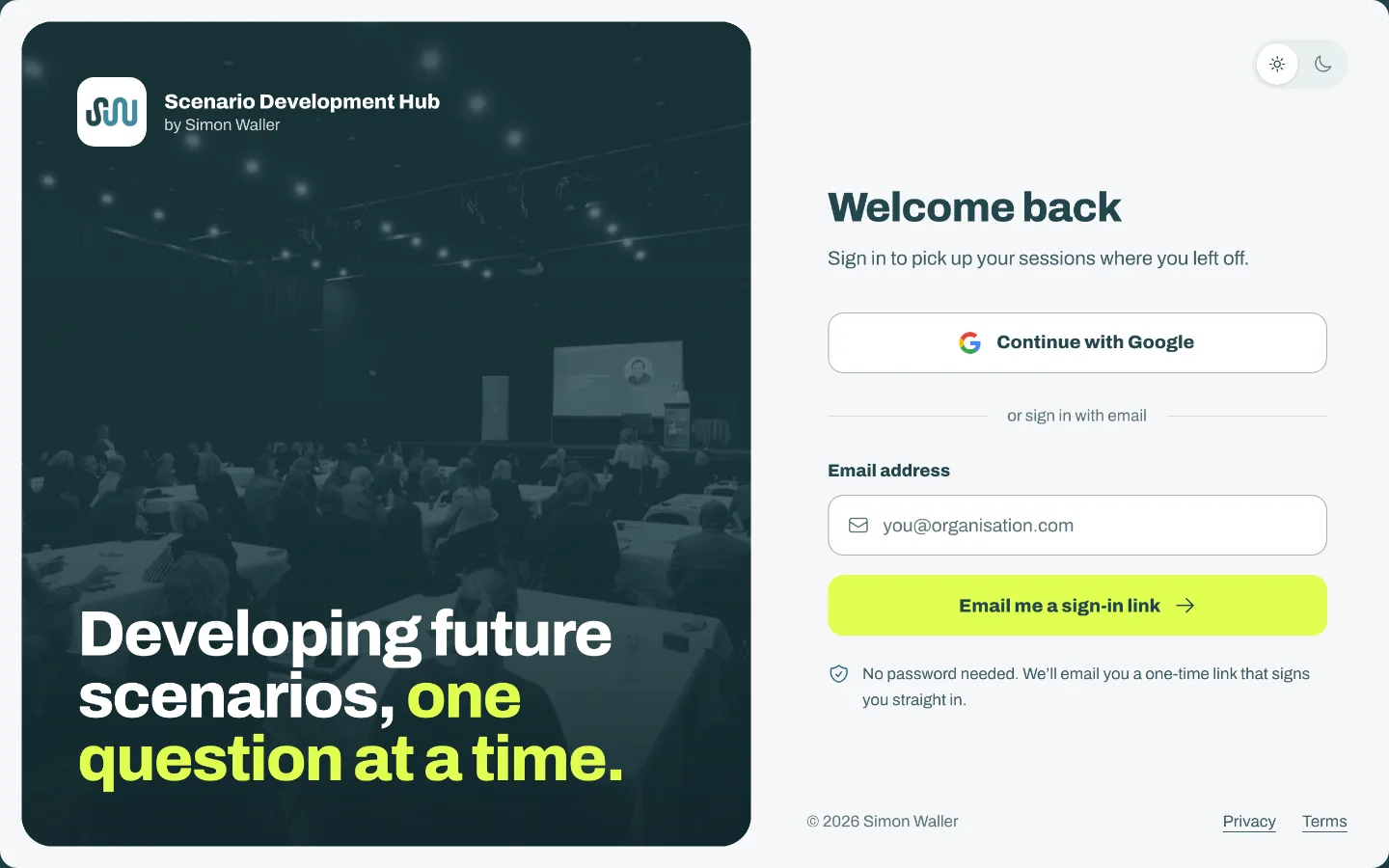
Type your email, then press “Email me a sign-in link”
Use the address your invitation was sent to. If you use Google for your email, “Continue with Google” works too.
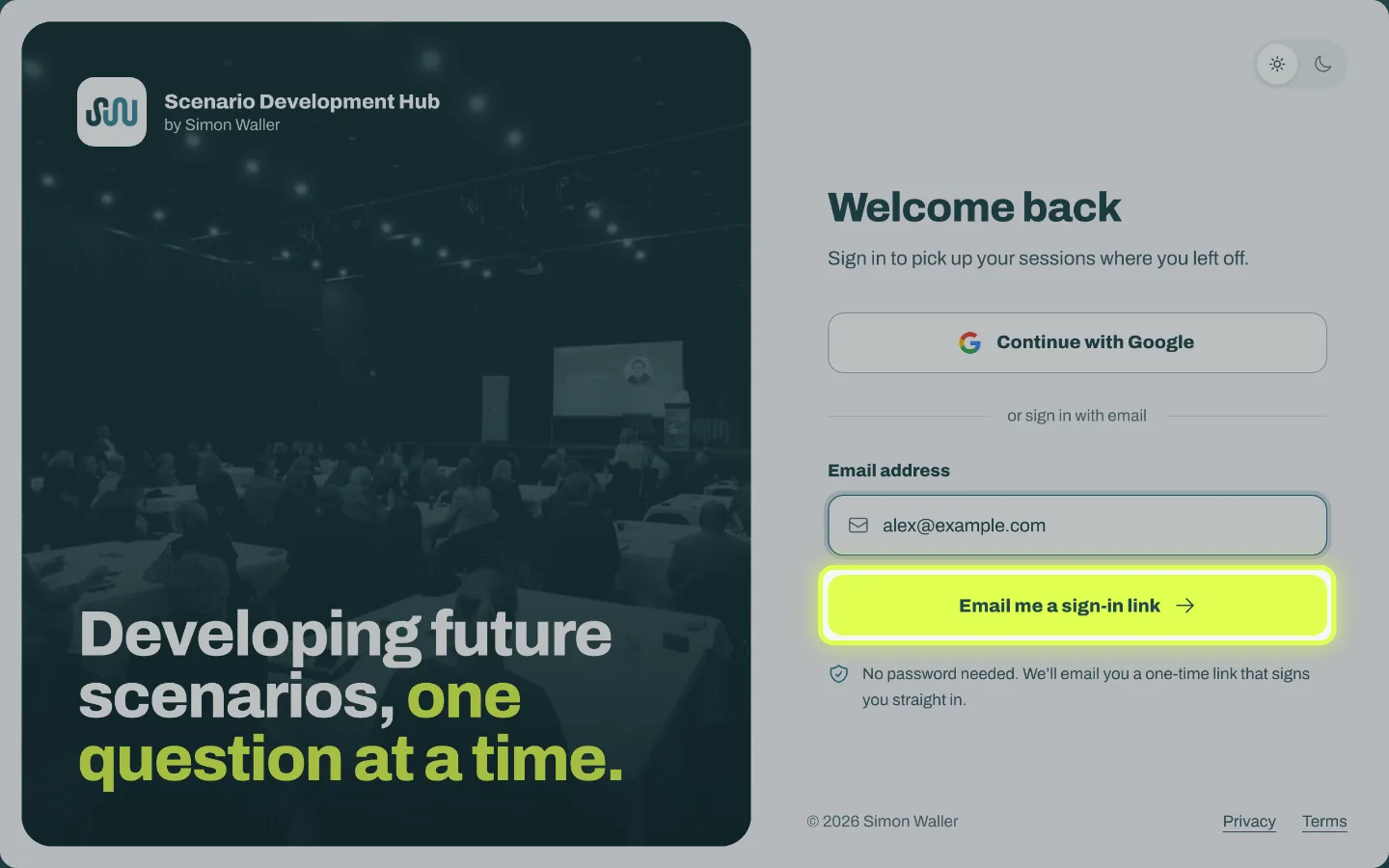
Check your email
You can leave the sign-in page open. The email usually arrives within a minute.
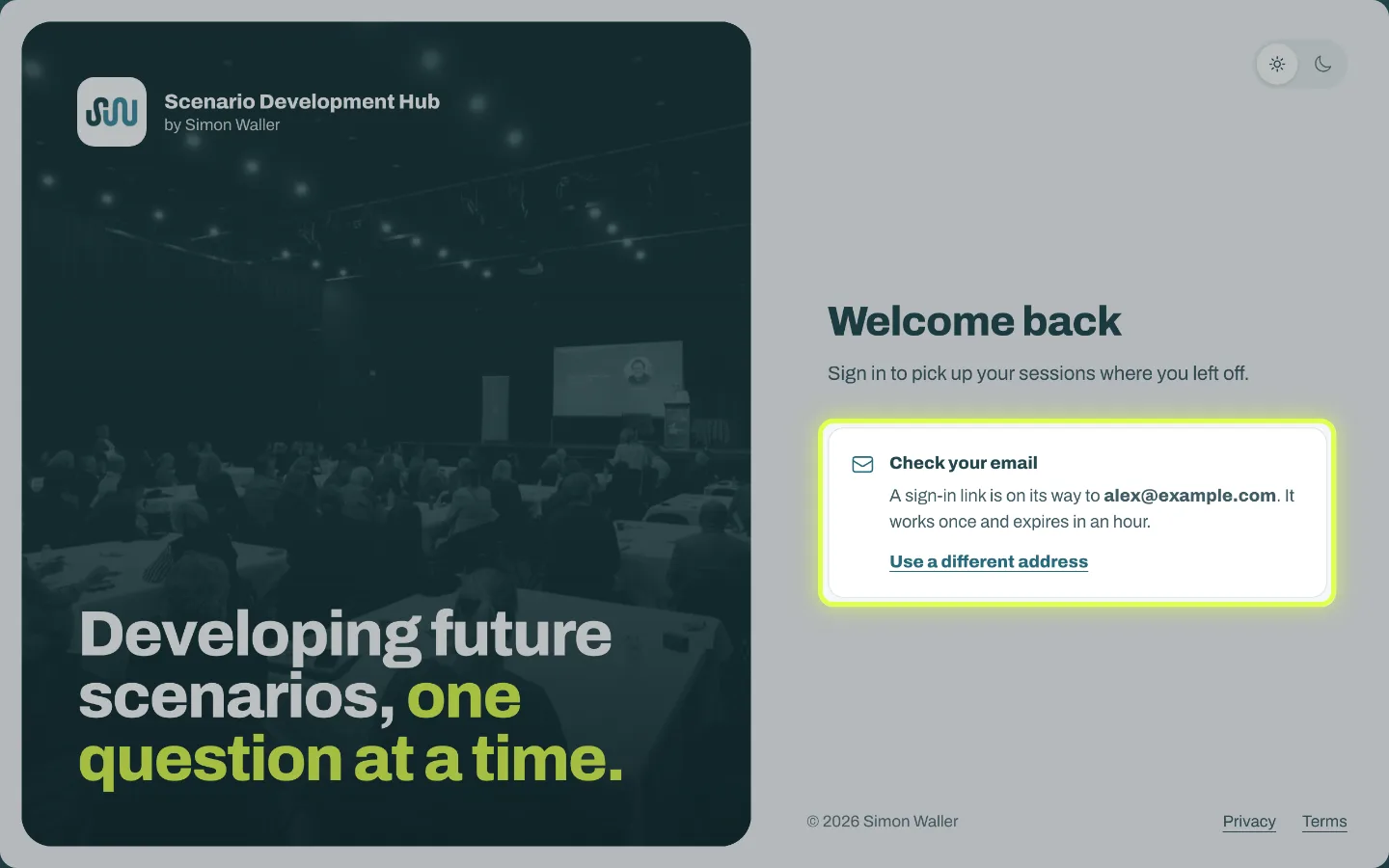
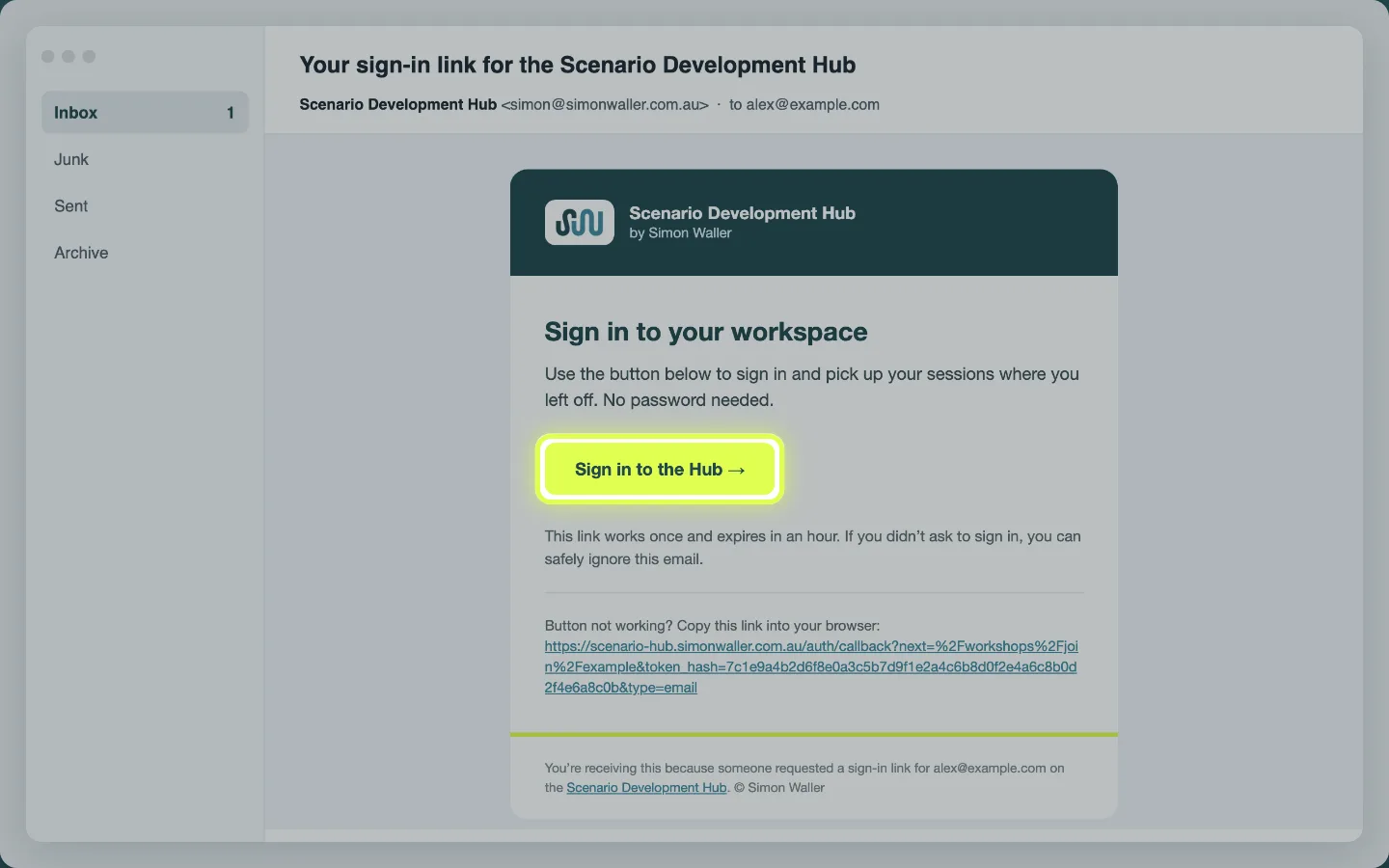
Open the email from Scenario Development Hub
Its subject is “Your sign-in link for the Scenario Development Hub”. Not there? Look in Junk or Spam.
Press “Sign in to the Hub”
The link works once and lasts an hour. Open it on the device you’ll use for the workshop: that’s the one it signs in.
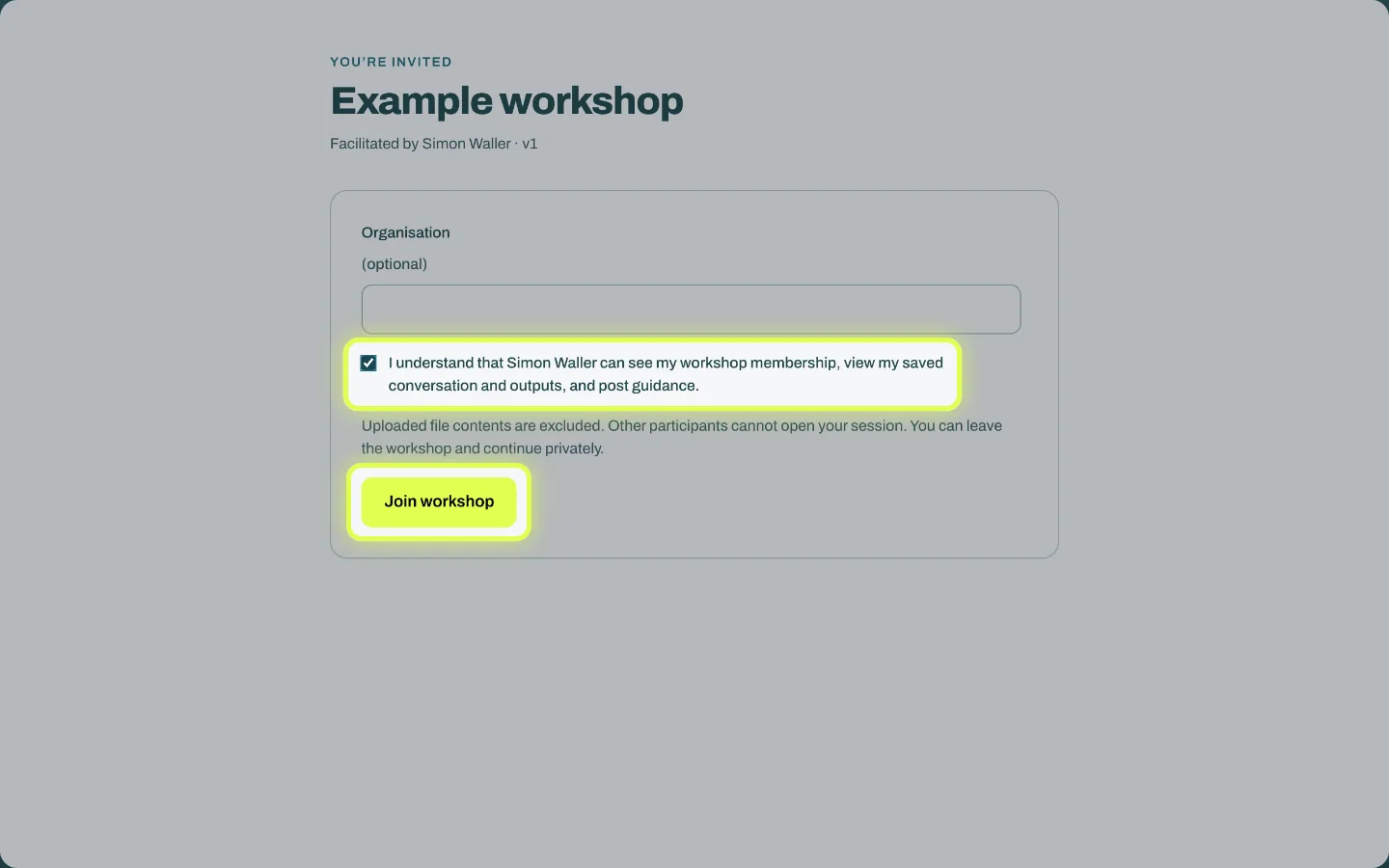
Tick the box, then press “Join workshop”
You only do this the first time. It says what Simon Waller can see of your work.
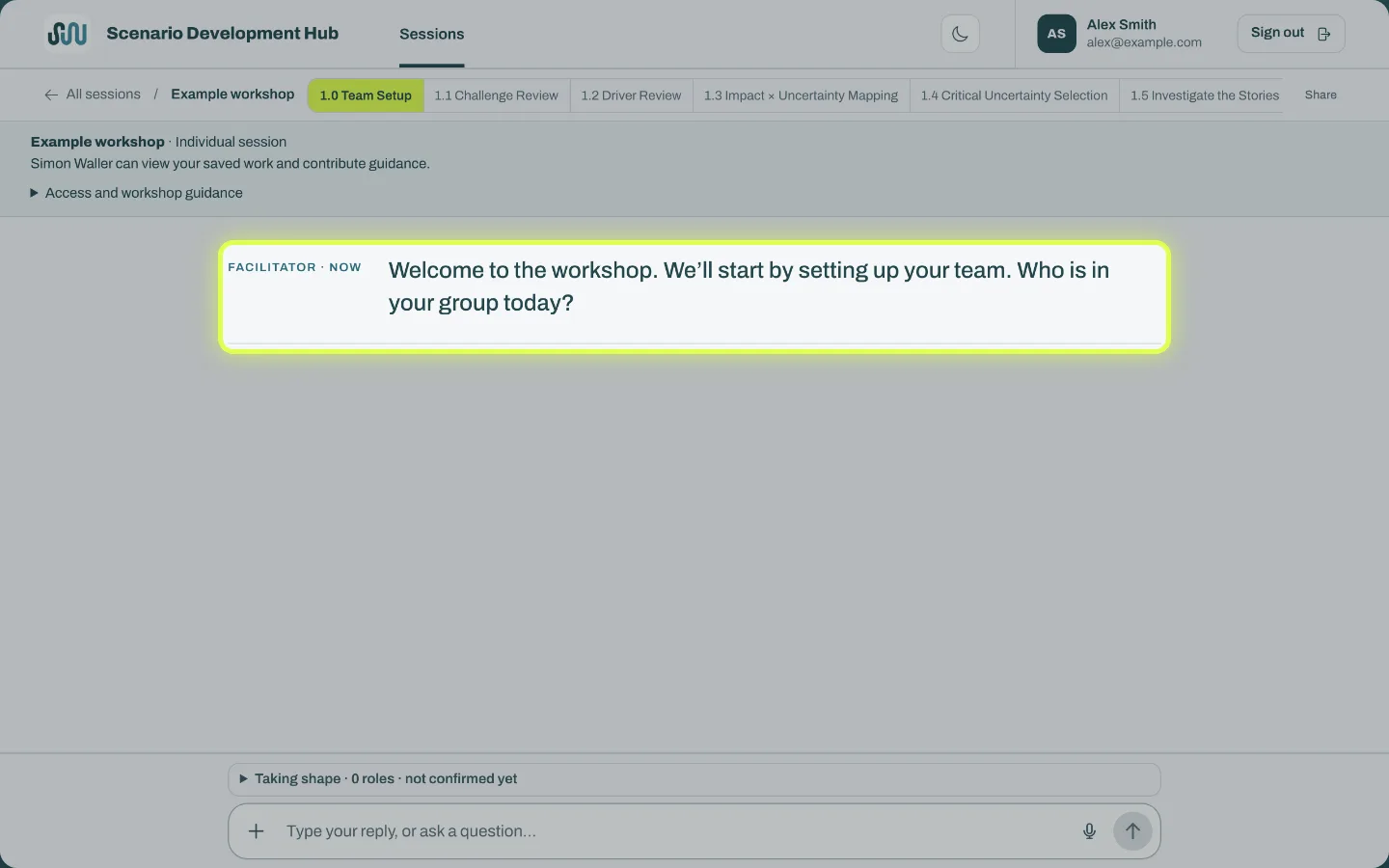
You’re in
Your workshop opens at its first activity. Reply to the facilitator to begin. Next time, open the same workshop link and you’ll pick up where you left off.
If something goes wrong
- The email hasn’t arrived
- Give it a minute, then check Junk or Spam. Make sure the address on the “Check your email” screen is right. Still nothing? Request a new link. School email filters sometimes hold messages back: your IT team can allow mail from simon@simonwaller.com.au.
- It says the link has expired or was already used
- Each sign-in link works once, for an hour. Open your workshop link again and ask for a new sign-in email, then use the newest one.
- I signed in on the wrong device
- The sign-in link signs in whichever device opens it. Open your workshop link on the device you want to use, ask for a new sign-in email there, and open it on that device.